Most people use Claude like a slightly smarter Google. Ask a question, get an answer, close the tab.
Which is fine. But it means Claude has no idea what's actually going on in your business. Every time you want it to help with your inbox or your week, you're copying things in by hand.
Claude connectors fix that. They plug Claude straight into the tools you already live in — Gmail, Google Calendar, Drive, Notion — so it can read what's there and act on it. No copy-paste. No "let me give you some context first."
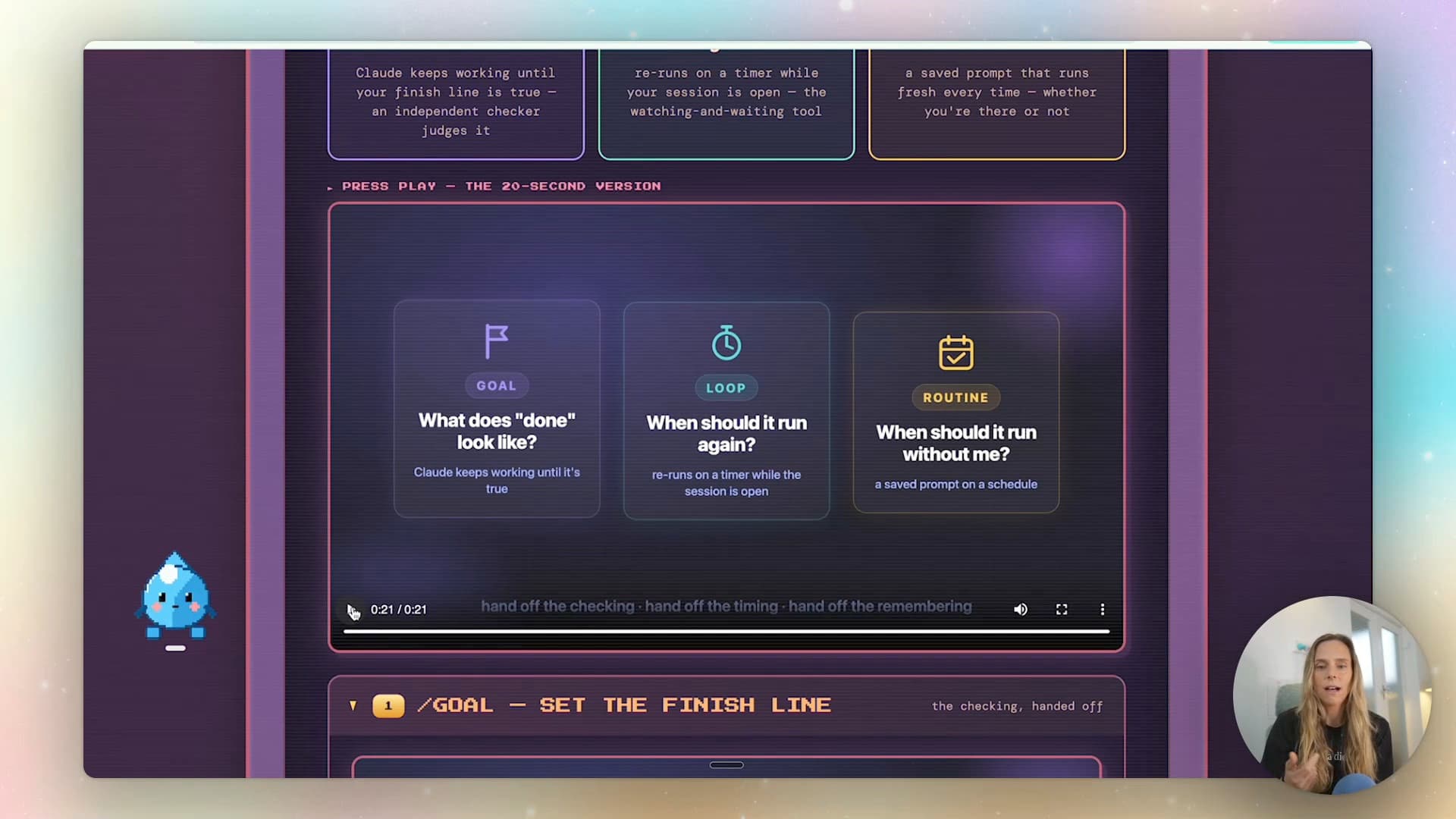
This is one of three features I walk through in the full video, but connectors are the one that turns Claude from a clever chatbot into something that actually sees your business. If you're newer to Claude, it's worth pairing this with how to use Claude projects and skills — projects give Claude context about you, connectors give it access to your tools.
What are Claude connectors?
A connector is a permission you grant that lets Claude read (and sometimes write to) one of your accounts. Connect Gmail and you can ask "which emails from the past 24 hours haven't I replied to?" and Claude will actually go and look. Connect Google Calendar and "what's free in my schedule this week?" gets you a real answer, mapped to your timezone.
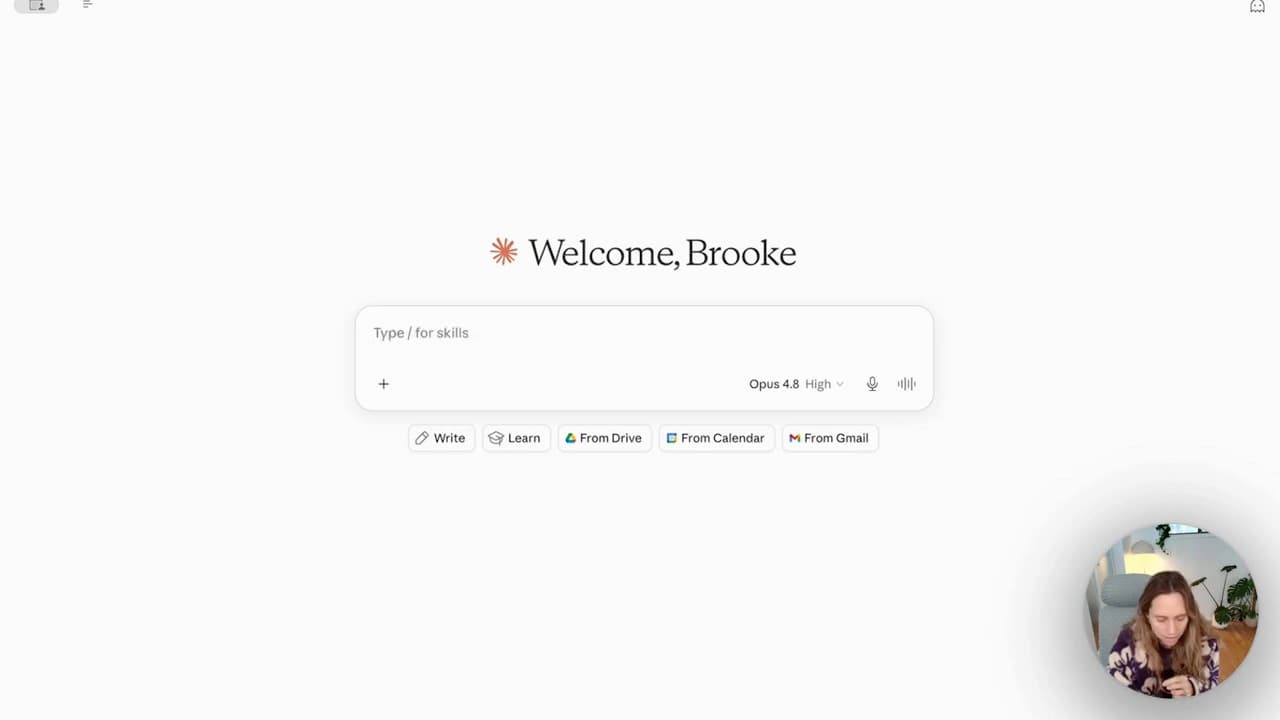
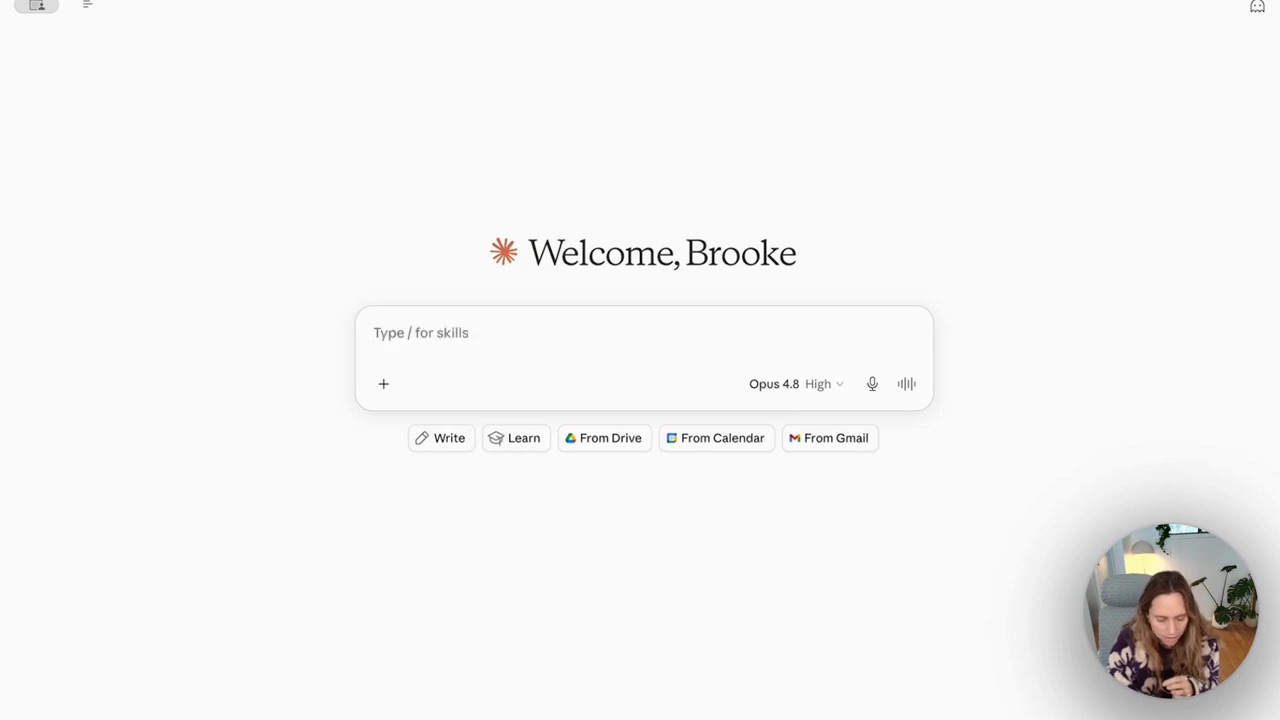
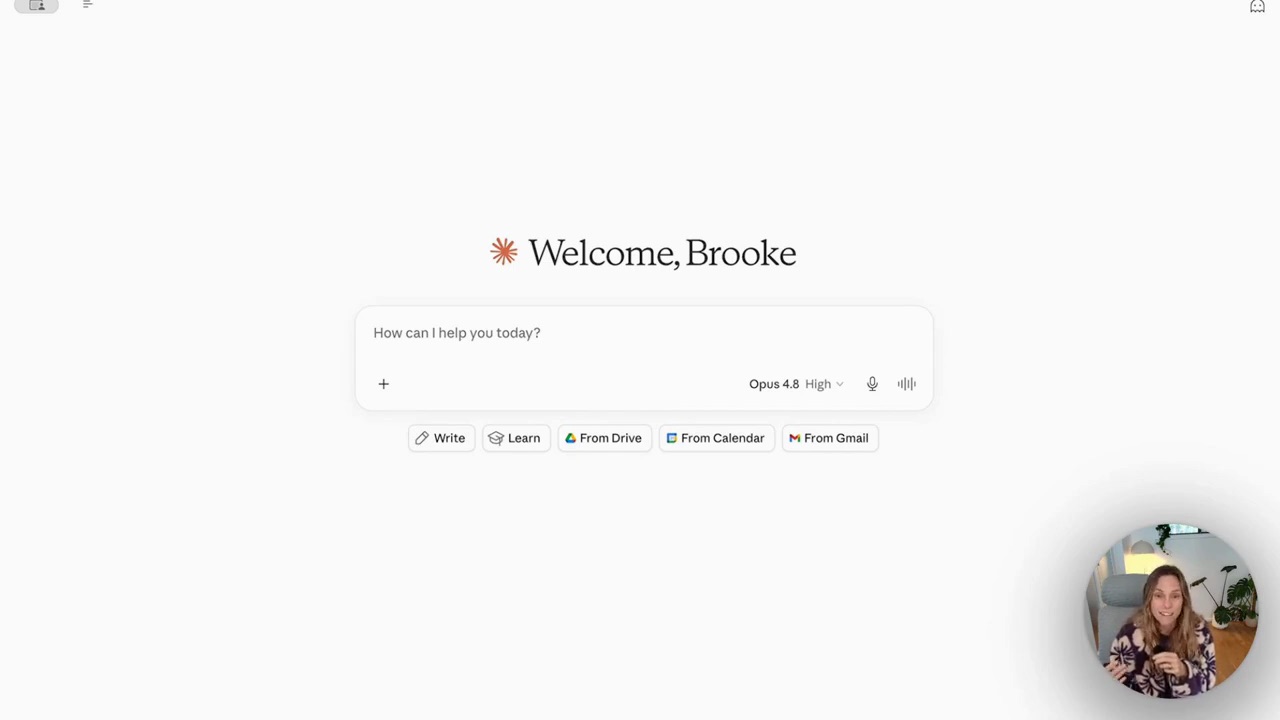
The connector buttons live right on the Claude home screen — From Drive, From Calendar, From Gmail — so once they're set up you pull live data in with one click.
The difference is hard to overstate. Before connectors, "what's urgent in my inbox?" got you a shrug — Claude had no inbox to look at. After connectors, it reads the actual emails and tells you what needs a reply.
How to set up a Claude connector (and the permission bit that matters)
Setting one up takes about a minute. You go to connectors, pick the tool, and authorise it the same way you'd connect any app to your Google account.
The part worth slowing down on is permissions. When you connect Gmail, Claude shows you two groups: read-only tools and write/delete tools. Read-only means Claude can look but not touch. Write/delete means it can send and delete on your behalf.
Start read-only. You can always grant more later once you trust what it's doing.
For most people, read-only does almost everything you actually want — summarising your inbox, flagging what needs a reply, pulling out action items. You only need write access if you want Claude drafting and sending replies for you, and even then you'll probably want to review before it sends.
What connectors actually do day-to-day
Here's where it stops being theoretical. With Gmail and Calendar connected, Claude can:
- Scan the last 24 hours of email and list what you haven't replied to
- Pull out genuine action items hiding in long threads
- Read your calendar and find your actual open slots this week
- Cross-reference the two — "I've got a gap Thursday morning, and there's an email asking to meet"
This is the same Projects context paying off, by the way. Because Claude already knows your business from your project instructions, it knows what "urgent" means for you — not a generic definition.
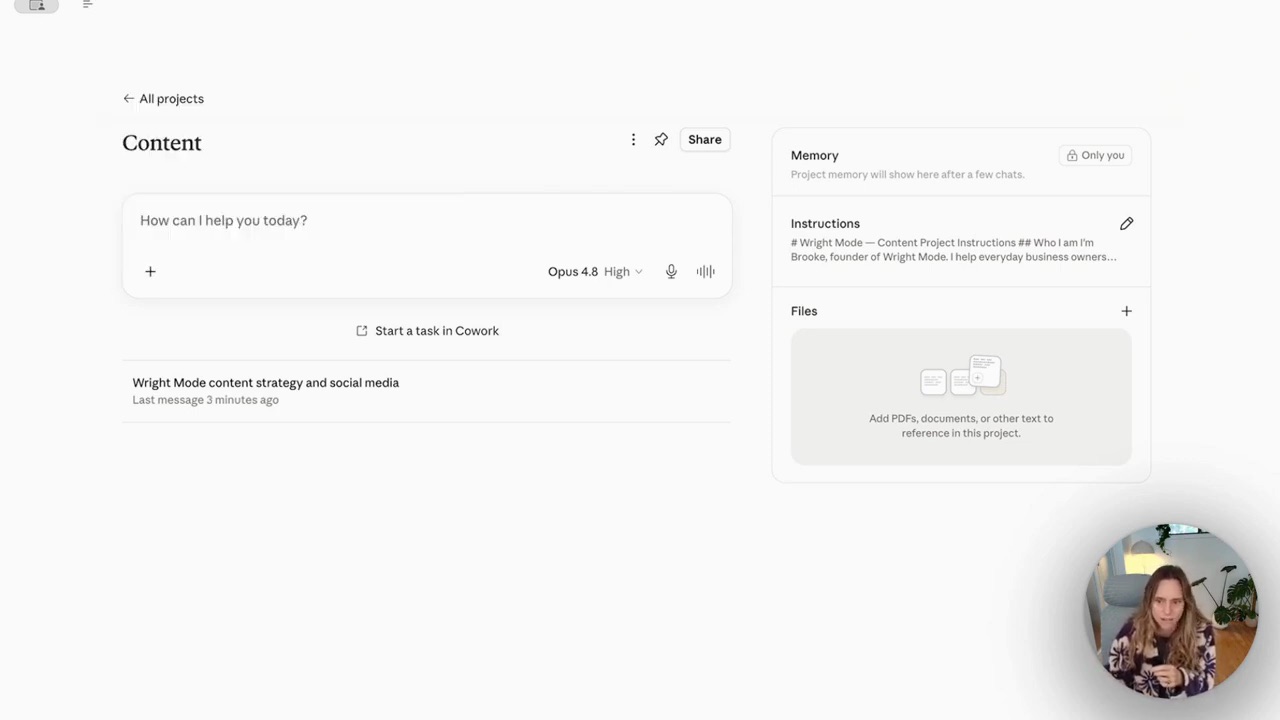
If you want the deeper version of working inside Claude like this — across chat, projects and the desktop app — the Claude Cowork tutorial walks through the three levels of leverage, from beginner to expert.
Are Claude connectors safe?
This is the question everyone asks, and it's the right one — you're handing an AI access to your inbox.
The honest answer: it's as safe as the permissions you grant. Connect read-only and Claude literally cannot send or delete anything. It can only look. The permissions screen is explicit about which tools fall into which bucket, so you're never guessing what you've handed over.
My rule: read-only for anything you're nervous about, write access only for the workflows you've watched run a few times and trust.
FAQ
What are Claude connectors?
Claude connectors are integrations that let Claude read and act on your other accounts — Gmail, Google Calendar, Google Drive and Notion among them. Once connected, you can ask Claude about your real inbox or calendar instead of copying information in manually.
How do I connect Claude to Gmail?
Open connectors in Claude, choose Gmail, and authorise it through your Google account. During setup you choose between read-only access (Claude can view your email but not send or delete) and write access (Claude can act on your behalf). Start with read-only unless you specifically want Claude sending replies.
Are Claude connectors safe to use with my email?
Yes, with read-only permissions Claude can only view your emails, never send or delete them. The permission screen clearly separates read-only tools from write/delete tools, so you control exactly how much access Claude has. Only grant write access for workflows you've tested and trust.
What's the difference between Claude projects and connectors?
Projects give Claude context about your business — your brand, your offers, the way you work — so it remembers you between chats. Connectors give Claude live access to your tools, so it can read your actual inbox and calendar. They work best together: projects tell Claude who you are, connectors let it see what's happening.
Connectors are the feature that takes Claude from "useful" to "actually runs the admin." Set them up read-only first, watch what it can do with just your inbox and calendar, and grant more access as you build trust.
If you want help wiring AI into your business properly — not just connectors, but the whole system — that's exactly what we do inside the Wright Mode membership, a working room of women founders building this stuff together.