I kicked off a big build at my desk last week, closed the laptop, and went to get coffee.
Halfway down the street my phone buzzed. Claude had hit a fork in the road and wanted to know which way to go. I tapped an answer, put the phone back in my pocket, and kept walking. By the time I got home the thing was done.
That's the bit nobody quite believes until they've done it: the work kept going on my laptop, and I was steering it from the footpath.
This is Claude Code's Remote Control feature, and if you're a non-technical founder who's been put off because "running things from the terminal" sounds like a tethered-to-the-desk situation — this is the part that unties you. Here's how it actually works, in plain English.
(If you've not set up Claude Code at all yet, start with Claude Code for non-technical users — this post assumes you've got it running.)
What it actually does (the baby-monitor version)
You don't sit in the nursery staring at the cot all night. You put a monitor in the room and you go do something else. You glance at it. If there's a noise, you go in. If it's quiet, you carry on.
Remote Control is a baby monitor for your work.
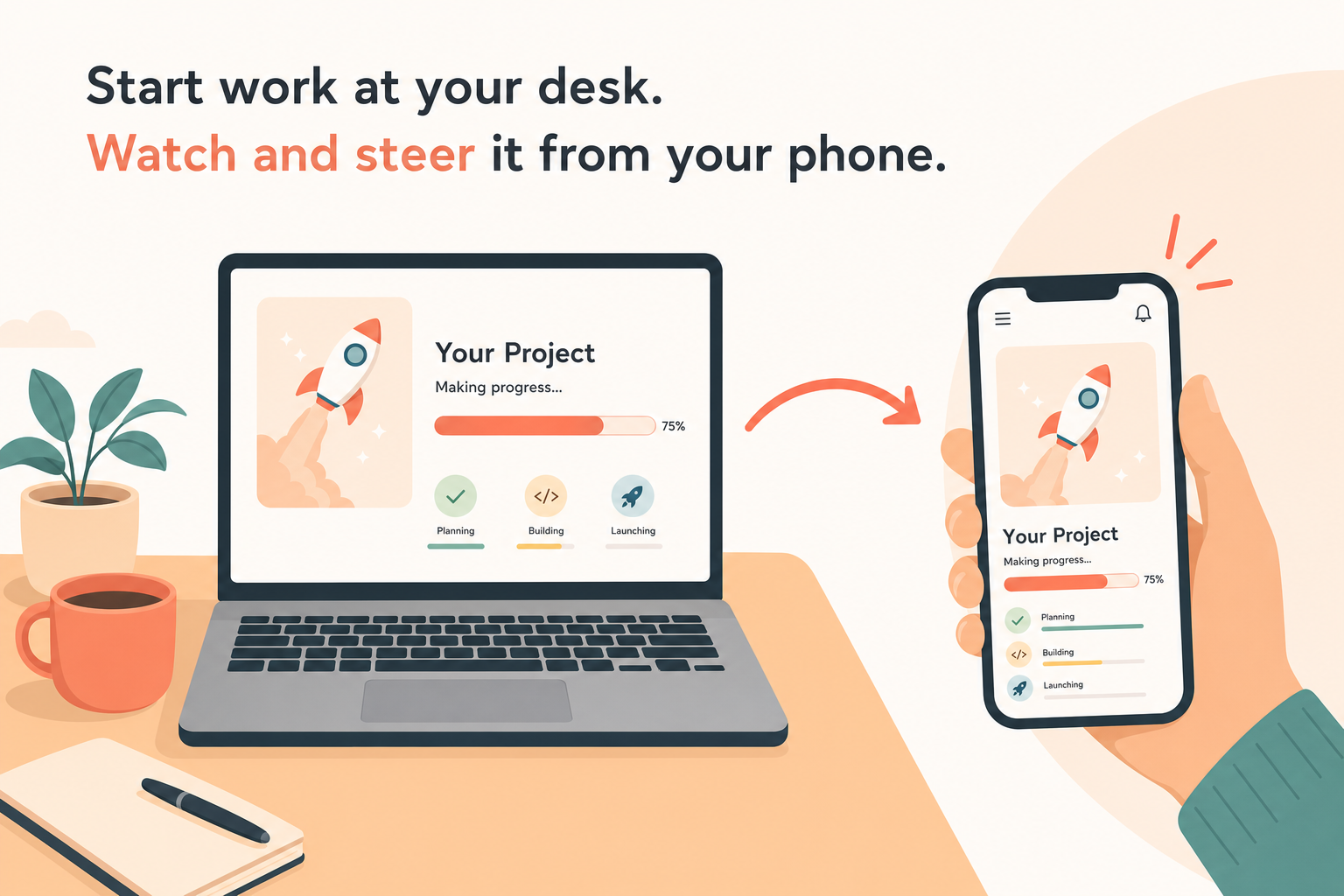
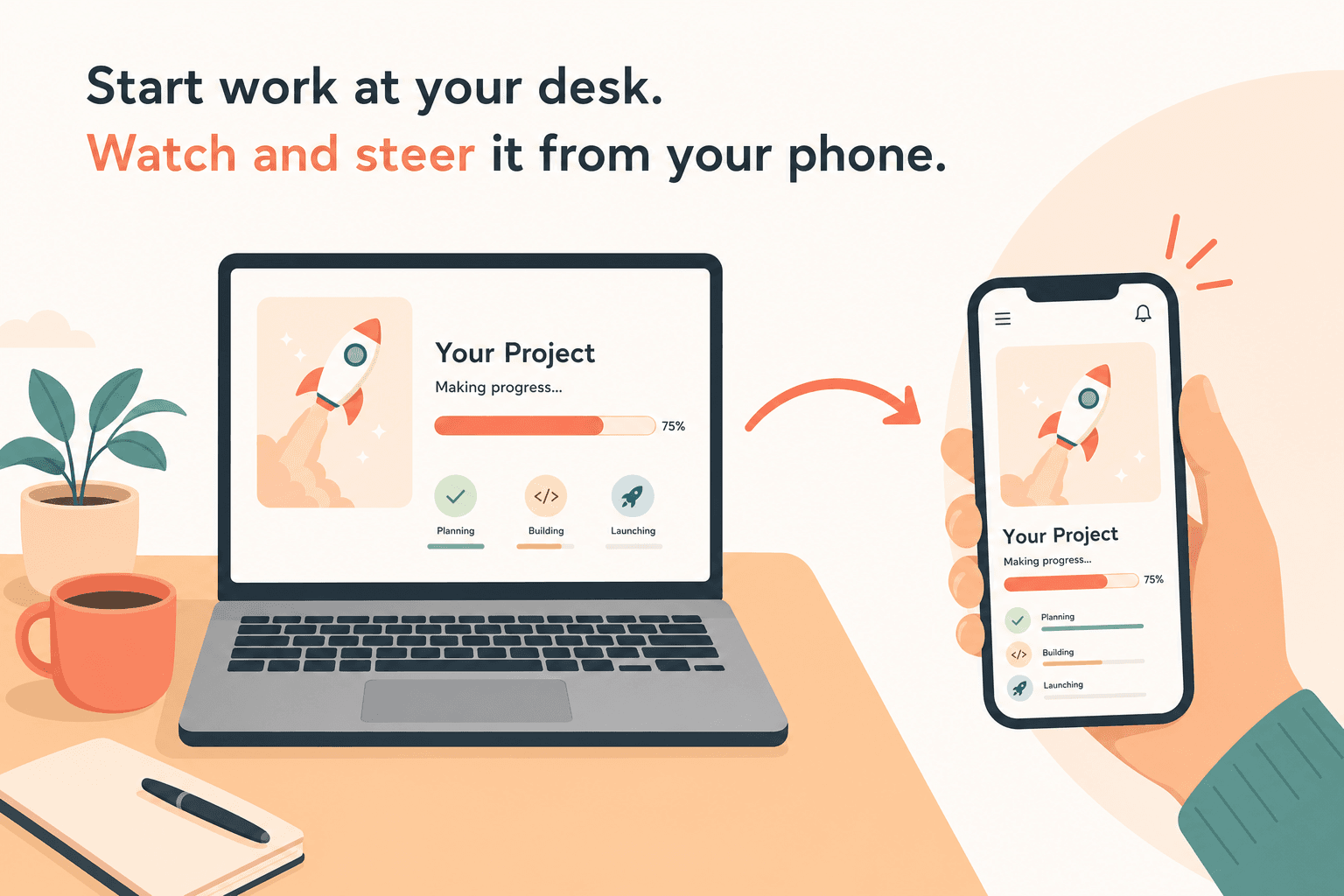
Start a build at your desk. Scan a QR code. Walk away. The "baby" (your build) stays in its room (your laptop). You're just watching the feed from another room, and you only step in when something actually needs you.
What that unlocks, practically:
- Kick it off and leave. Start a long job — a website, a batch of content, a big rewrite — close the lid, go to dinner. It keeps running.
- Answer its questions on the go. Claude hits a "which way?" moment, the question pops up on your phone, you tap an answer, it keeps moving.
- Talk instead of type. Phone keyboards are painful. Your phone has a microphone. Speak the instruction, send it, done.
The bit people get wrong: nothing leaves your laptop
This is the part worth slowing down on, because it's the most common misunderstanding.
Remote Control is not "your work moves to the cloud."
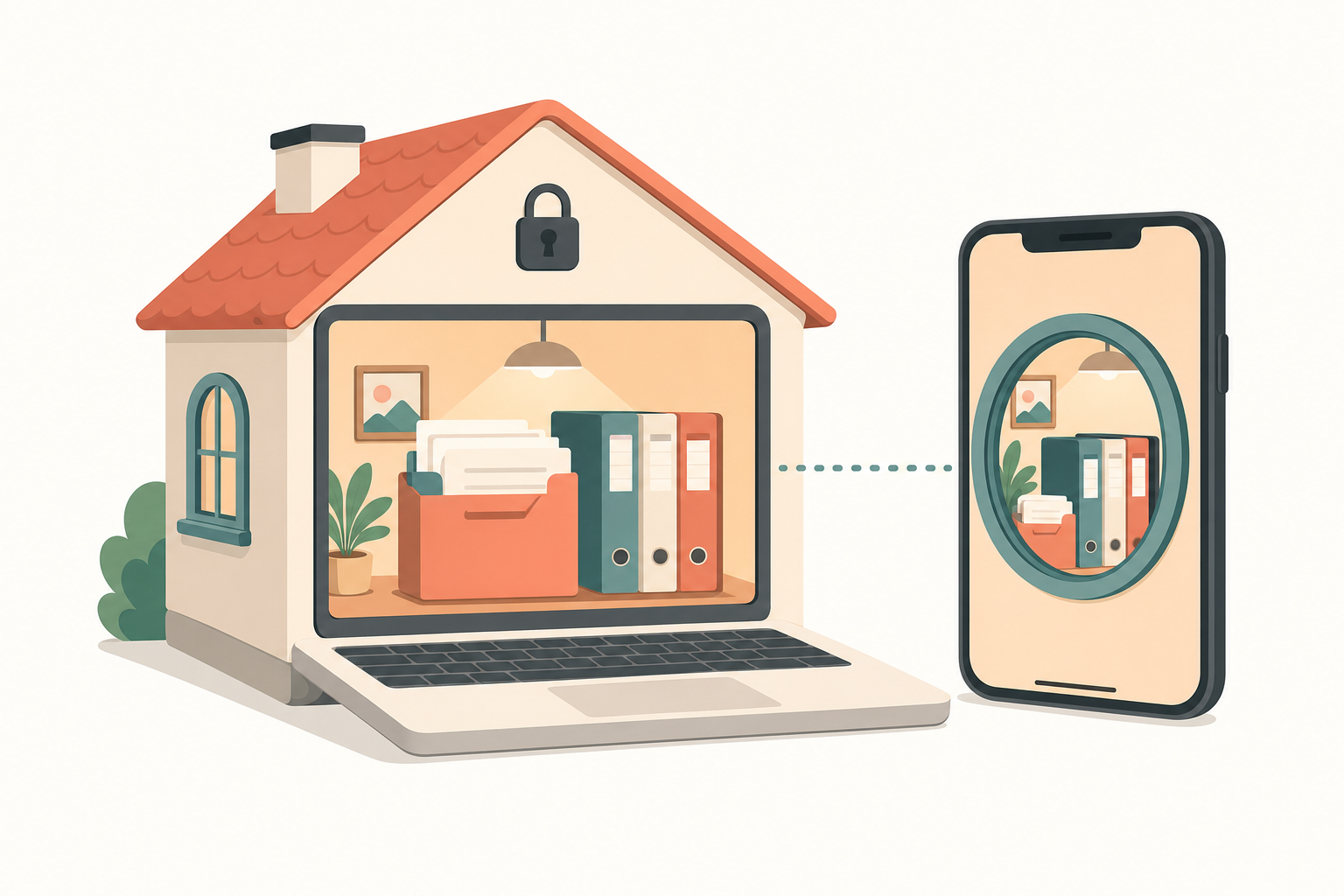
Your files stay on your machine. Your folders, your set-up, your connected tools — all of it stays put. The phone is just a window into what's already running on your laptop. You're looking through the window, not moving the house.
Why this matters: your set-up is the valuable part. The web version of Claude Code starts from scratch every single time — none of your context, none of your files. Remote Control keeps everything you've built and just lets you reach it from your pocket.
Setting it up: three doors into the same room
There are three ways to start, depending on where you are. Think of them as three doors into the same room — same destination, you just walk in from wherever you're standing.
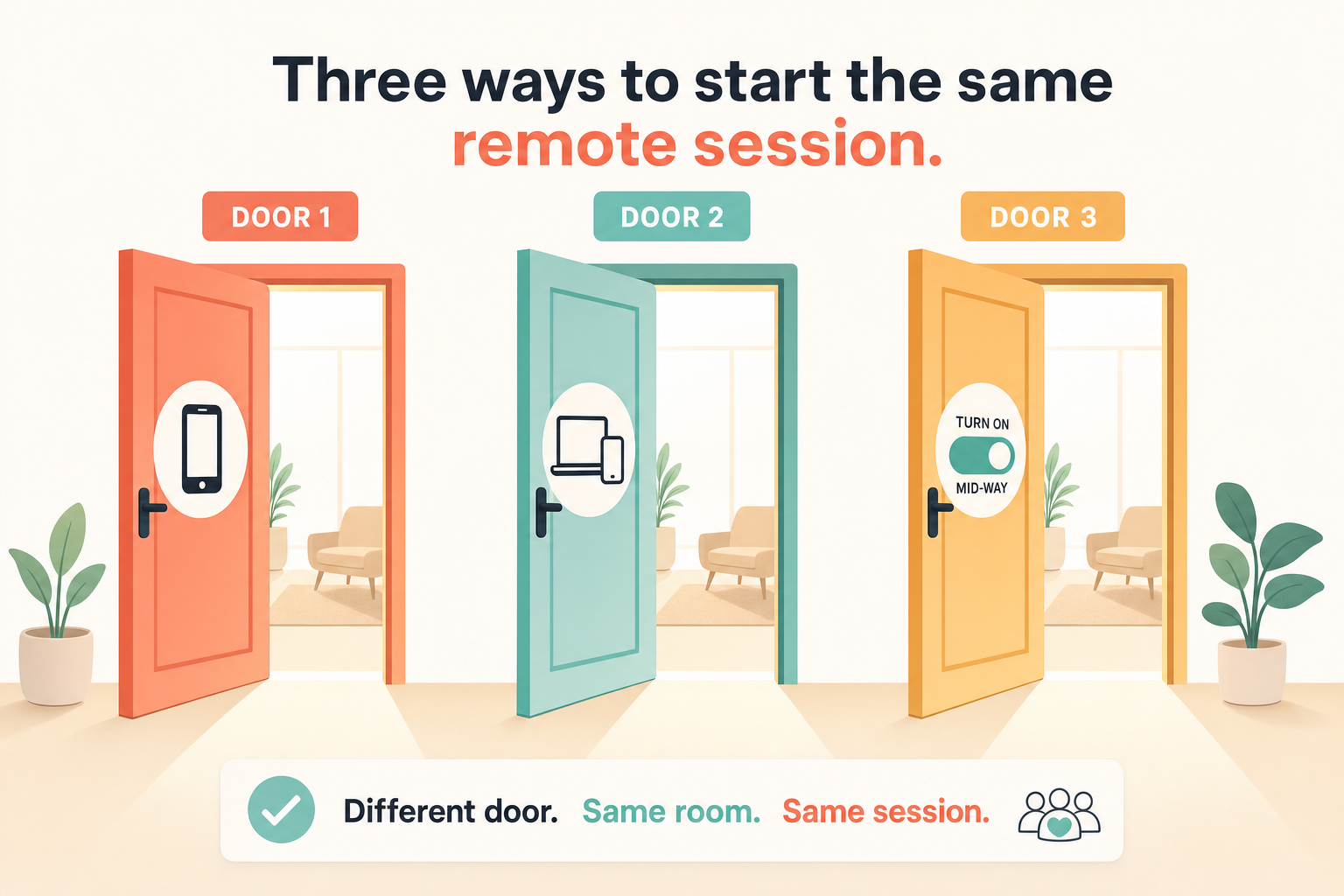
Door 1 — phone-only. You want it remote from the start. In your terminal:
claude remote-control
(Or the short version, claude rc.) Your terminal shows a link and a QR code — tap spacebar to show or hide the code.
Door 2 — desk and phone at once. You want to type at your desk now but keep the option to grab your phone later:
claude --remote-control
(Or claude --rc.) This is the one I'd start with if there's any chance you'll step away. Easier than remembering to switch it on later.
Door 3 — flip it on mid-session. Already chatting with Claude and now you want to walk away? Just type /remote-control (or /rc). Your whole conversation carries over.
Then get it onto your phone: scan the QR code with your camera, tap the link, or open the Claude app and find your session in the list (it shows a little computer icon and a green dot).
One conversation, two windows
Here's the part that makes it feel like magic rather than a faff: the laptop and the phone mirror each other.
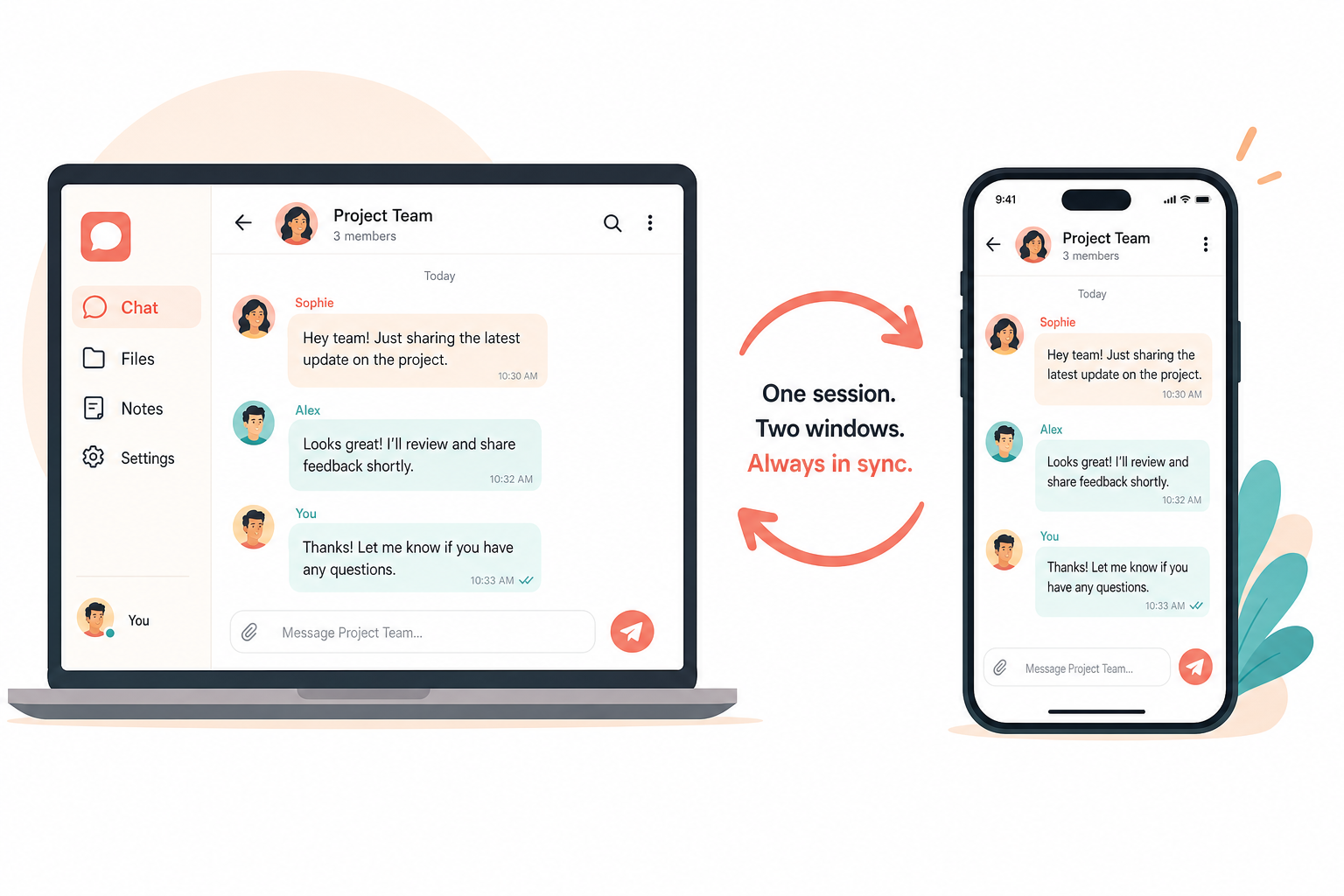
Type on your phone, it shows up on the laptop. Claude does something on the laptop, you see it on your phone. It's one conversation with two windows — you're never juggling separate chats.
Working from your phone (do the right things, not everything)
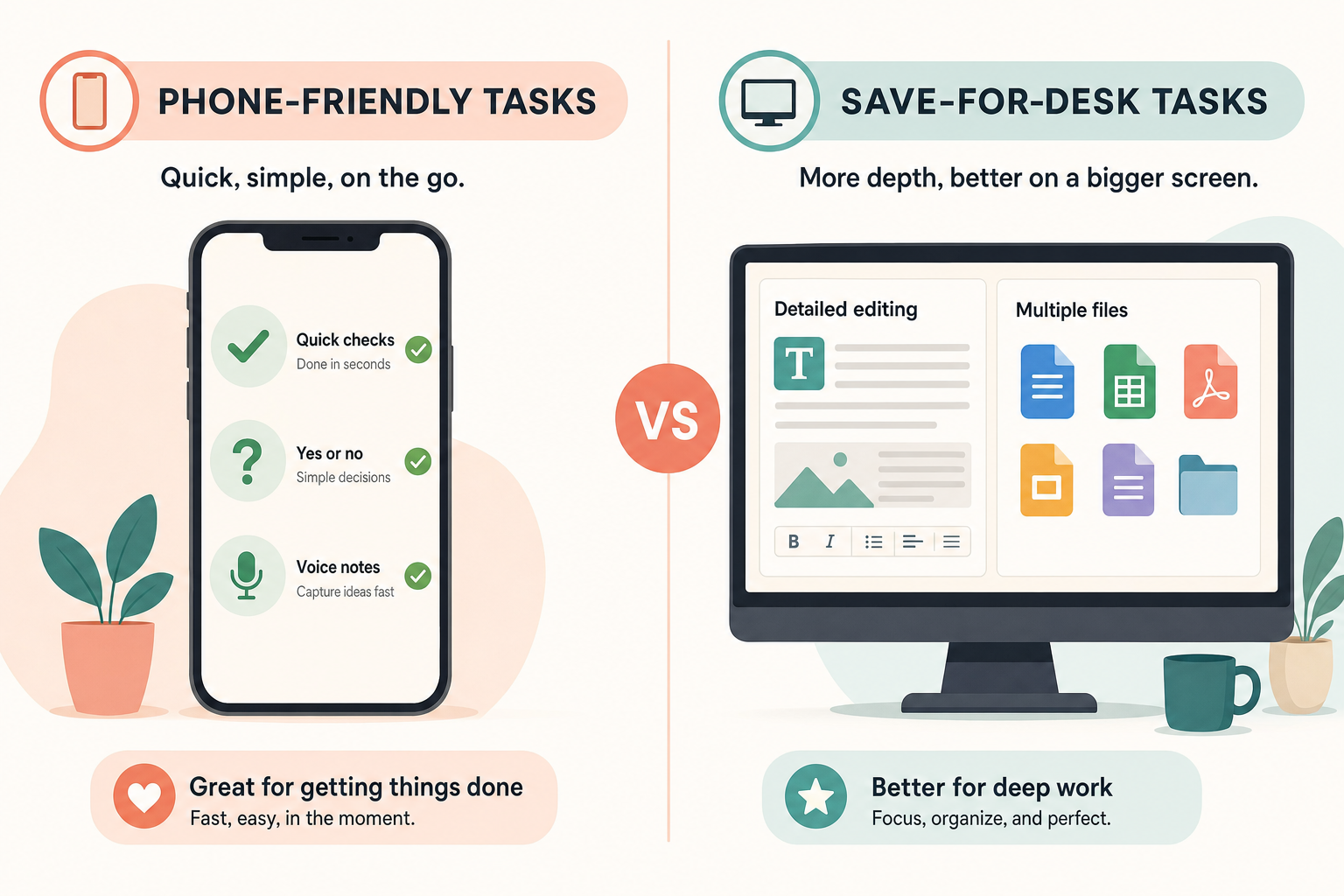
Your phone is a different tool, not a smaller desk. The keyboard's slow, you see less, your attention's split. The goal isn't to do everything from your phone — it's to do the right things.
Think of it like texting a contractor working on your house. You're not picking up a hammer over text. You're answering "yep, go with the white tiles" so they can keep moving.
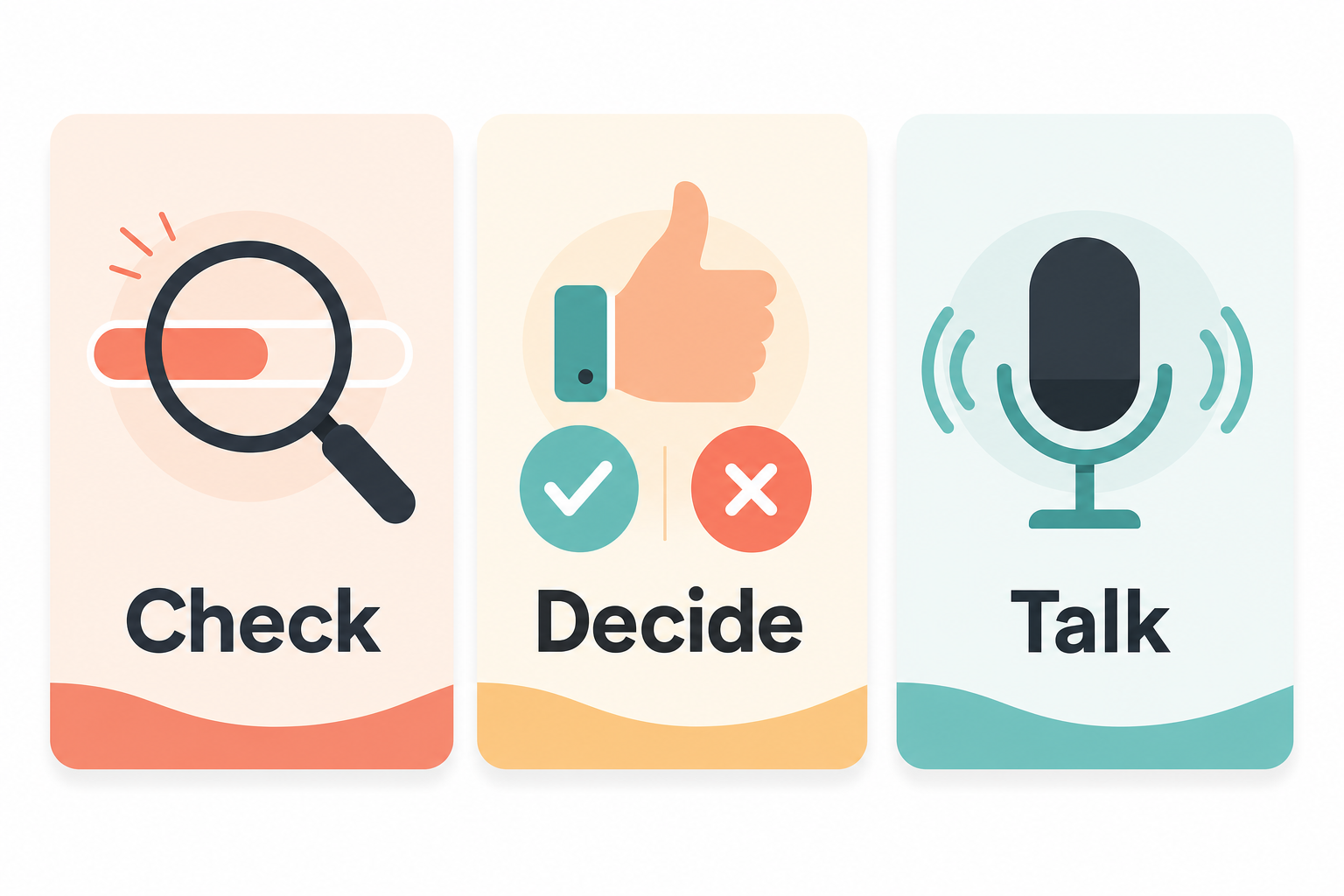
There are really only three things you'll do on mobile:
- Check (10 seconds). Open the app, glance at the latest line. Still running? Good. Hit a snag? Note it. If everything's fine, you do nothing and put the phone away.
- Decide. Claude needs a call — a yes/no, a "this or that." You answer in a sentence: "Use the blue, not the green." "Skip that for now." You're keeping the conveyor belt moving.
- Talk. Hit the microphone instead of thumb-typing. "Read the brief and tell me where we got up to." Way faster than typing, and it works when your hands are busy.
The rule of thumb for what waits: if it needs your full focus and a real screen — careful editing, tracing a problem, nuanced creative feedback — save it for the desk.
The handoff trick most people skip
The smoothest version of this has a clean handoff when you switch devices — you literally tell Claude you're stepping out, the same way you'd brief someone covering for you.
Before you leave your desk:
I'm stepping away. Keep going with the build.
If you hit a blocker, describe it clearly and wait for me.
Now Claude won't pester you with little questions, but it will flag anything real. When you're back:
What happened while I was away? Summarise the progress
and anything you need from me.
The habit that stops you losing your place
Here's the thing nobody tells you up front: Claude doesn't remember between sessions.
Within one session, everything syncs across your devices beautifully. But sessions end — the terminal closes, the laptop restarts, you hit a limit. Start a new session the next day and Claude has no idea what you were doing. Blank slate.
You could re-explain everything. It's slow and you'll miss details. Or — and this is the whole trick — you put the important stuff in files that stick around, and you point Claude at them.
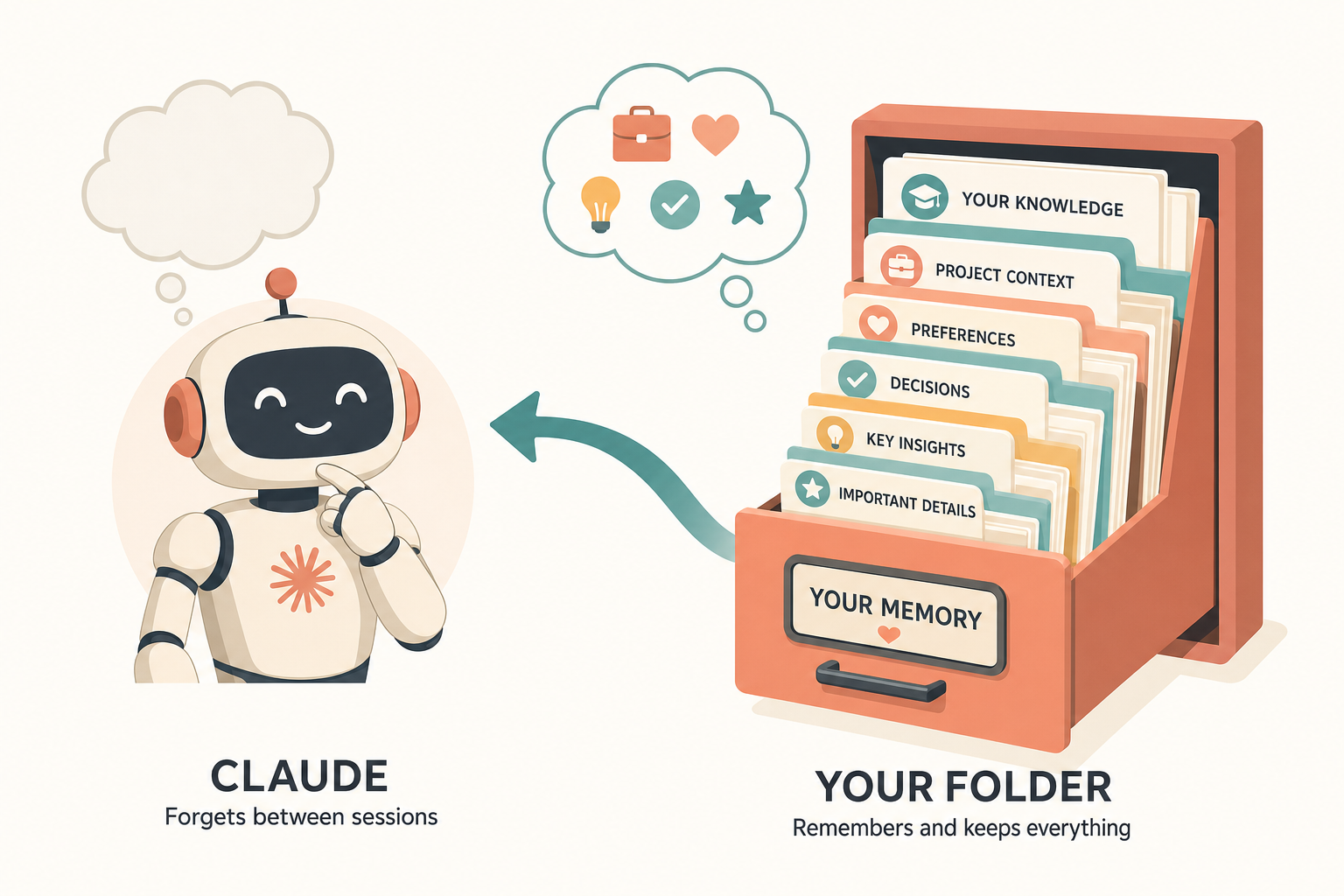
Claude's brain wipes between sessions. Your filing cabinet doesn't. So everything Claude needs lives in the project folder: the brief (what are we building?), the progress notes (what's done, what's next?), the actual work.
The one file doing the heavy lifting is a simple PROGRESS.md at the top of the project:
# Progress

## Current status
Building the layout. The workflow map is next.

## Last session
- Done: basic set-up, connection working
- In progress: the main components
- Next: add the collapse/expand bit

## Decisions made
- Went with option A (faster for our timeline)
Start each session with "Read PROGRESS.md — where are we, what's next?" End each session with "Update PROGRESS.md with what we did and what's next." Thirty seconds of writing saves you ten minutes of re-explaining tomorrow.
When you come back after a session's ended, run this little routine: orient (read the notes), check (look at the actual files — does the note match reality?), continue.
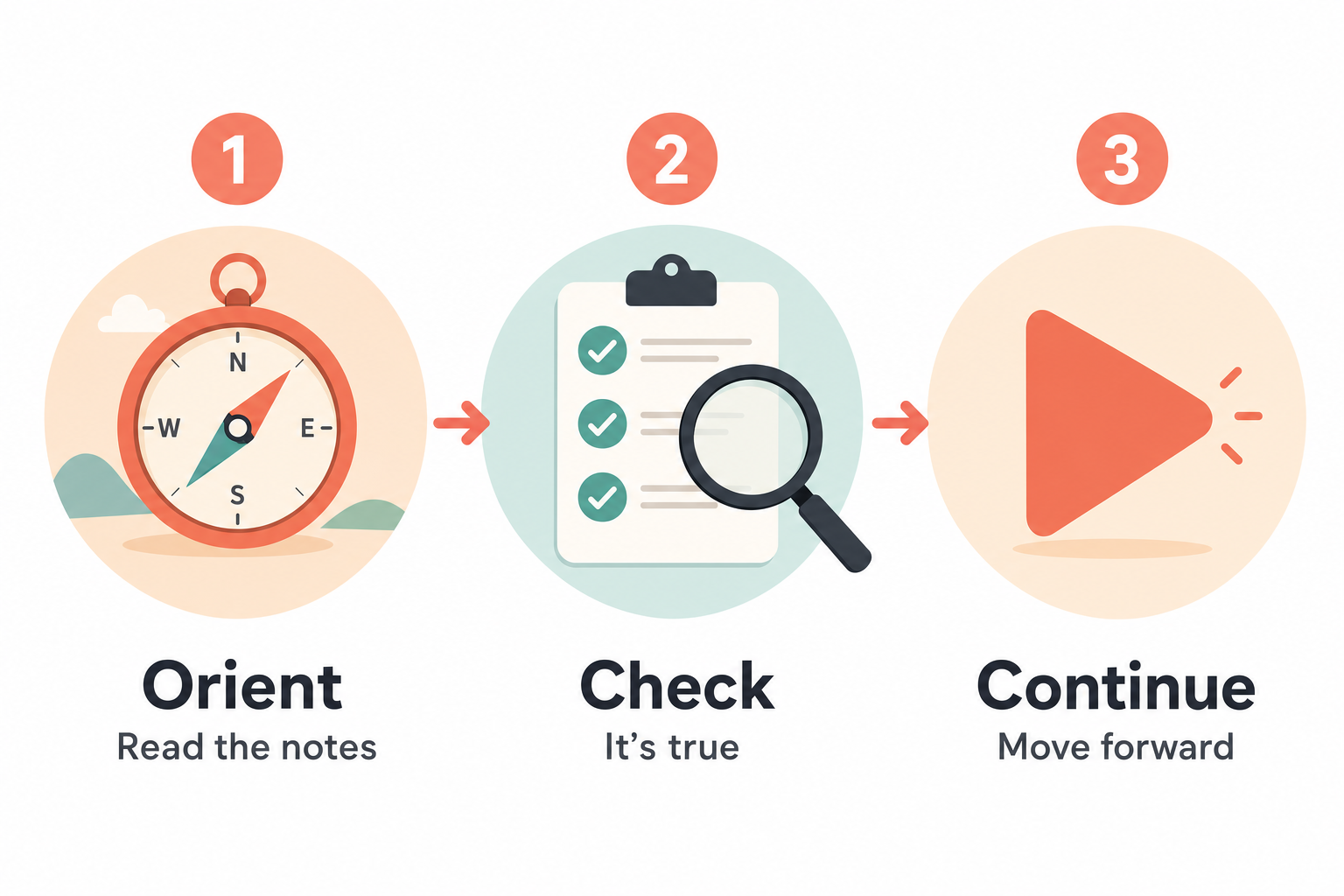
This is the same principle that runs through everything I teach: the folder is the source of truth. Claude forgets. Your folder doesn't. The folder is the memory — and that's true whether it's one session, a phone-and-laptop combo, or a whole team.
Do you actually need this yet?
Quick gut check, because not everyone does:
- How often are you away from your desk while something's building? Rarely → you don't need it yet. Often → this changes how you work.
- How long do your builds run? A few minutes → just wait. 30+ minutes or hours → remote check-ins genuinely help.
- What plan are you on? It's available on Pro, Max, Team and Enterprise now (it started as Max-only, but Pro access has landed). On Team or Enterprise an admin flips a toggle on first. One catch: you have to log in through your Claude account — API keys won't work. You'll also want Claude Code version 2.1.51 or newer (
claude --versionto check).
A few honest rough edges, because it's still a research preview: the terminal has to stay open (close it and the session ends), a long internet dropout will time it out, and you'll see the occasional hiccup. None of it's a dealbreaker — it's "new feature, still smoothing out."
The bigger picture
For a while you had two options: Claude Code locally (powerful, but chained to the desk) or the web version (mobile, but no local context). Remote Control gives you both — local power, mobile access.
It changes how you can work. Start something at your desk. Walk away. Come back. The session's still there, your context is still there, nothing lost.
If you want the rest of this — the folder set-up, the Claude Code workflows, the whole "AI that runs alongside your business instead of just answering questions" system — that's exactly what we build together inside Wright Mode. Come build your stack with us.